> ## Documentation Index
> Fetch the complete documentation index at: https://support.effra.io/llms.txt
> Use this file to discover all available pages before exploring further.
# Splose
# Storing and updating patient insurance details
Having set up your Splose account with Effra, you'll need to make sure you store patient insurance details in the right place so that we can smoothly submit your invoices.
In Splose, Effra extracts the insurance policy number and authorisation number from each invoice. There are two main options to ensure that these details are included in all the relevant invoices
## Cases
The best option is to save insurance information in a case linked to the patient.
To do this:
1. Navigate to your **Patients/Clients** page within Splose
2. Search for and select a patient/client
3. Within their profile, navigate to the **Cases** tab
4. Select *New case*
5. Complete the mandatory fields and add the insurance information to the *Notes* box
6. Select *Create case* in the top right of the page
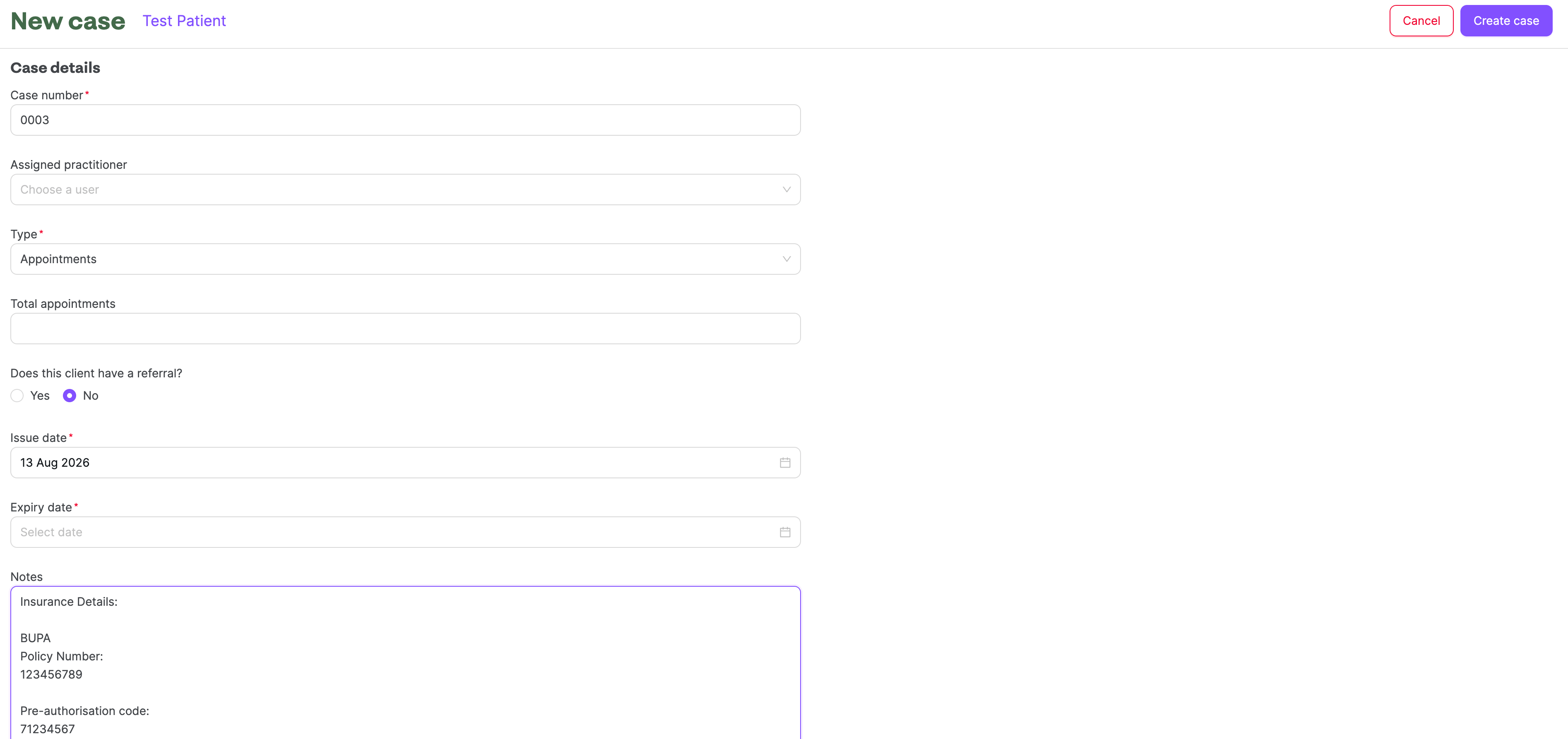 With this created, you'll be able to link appointments in your calendar to specific cases, which will in turn automatically apply the patient's insurer details to any resulting invoices.
## Patient Profile
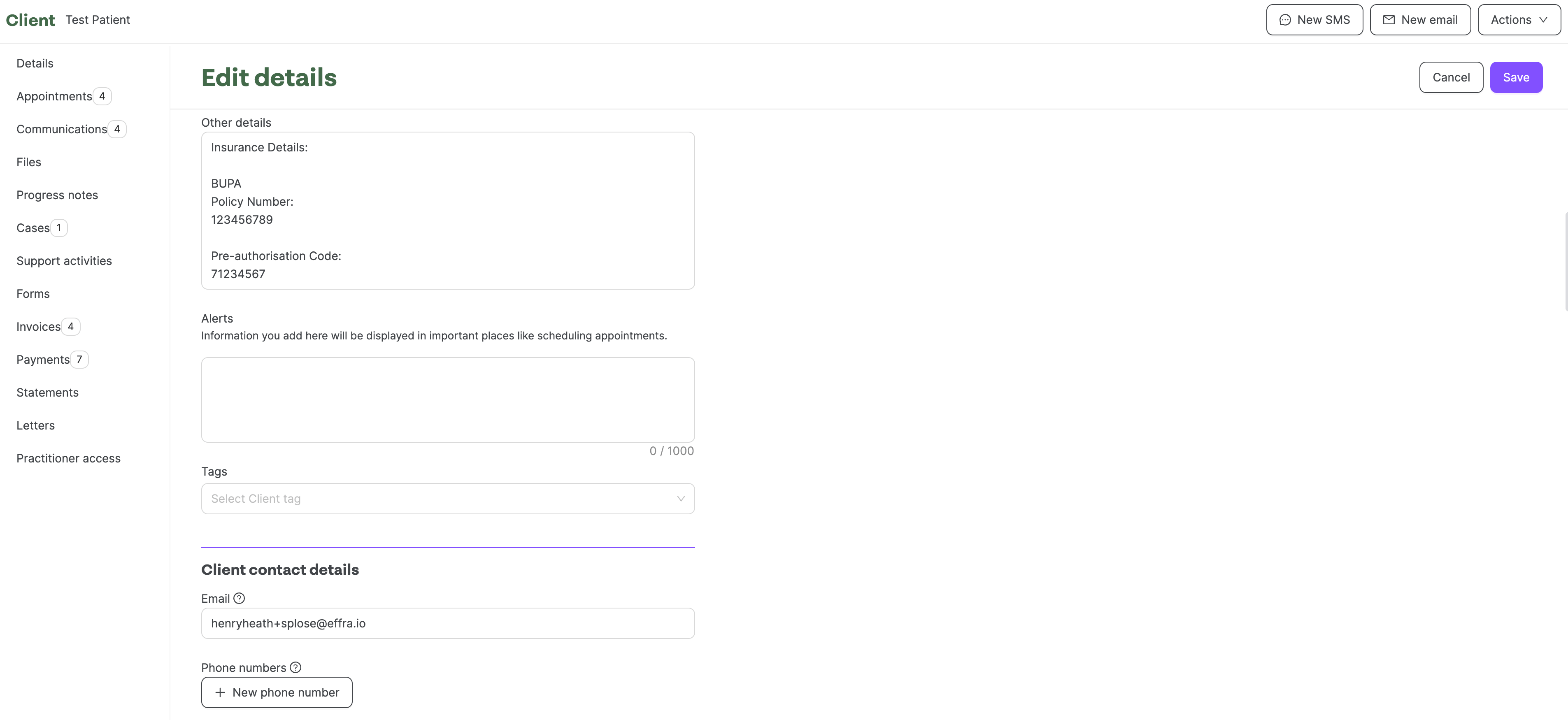
Alternatively, you can save the details within the **Other details** section of a patient/client's profile.
To do this:
1. Navigate to your **Patients/Clients** page within Splose
2. Search for and select a patient/client
3. Within their profile, click *Edit*
4. On the **Edit details** page, add the insurance information to the *Other details box*
5. Select the *Save* button in the top right of the page
Information saved here will automatically be added to any invoice raised for the patient.
With this created, you'll be able to link appointments in your calendar to specific cases, which will in turn automatically apply the patient's insurer details to any resulting invoices.
## Patient Profile
Alternatively, you can save the details within the **Other details** section of a patient/client's profile.
To do this:
1. Navigate to your **Patients/Clients** page within Splose
2. Search for and select a patient/client
3. Within their profile, click *Edit*
4. On the **Edit details** page, add the insurance information to the *Other details box*
5. Select the *Save* button in the top right of the page
Information saved here will automatically be added to any invoice raised for the patient.
 # Submitting an invoice through Effra
With your patient's insurance details saved, you're now all set to raise invoices and submit them using Effra.
There are three options to create an invoice in Splose:
1. Direct from a calendar appointment (recommended)
2. In a Client/Patient's profile, within the **Invoices** tab
3. On the **Invoices** page
Each option will take you to the **Create Invoice** page, but we'd recommend doing it directly from the calendar appointment, as this will pre-populate the patient's name, their 'Extra invoice details' and the corresponding service being billed (e.g. appointment).
# Submitting an invoice through Effra
With your patient's insurance details saved, you're now all set to raise invoices and submit them using Effra.
There are three options to create an invoice in Splose:
1. Direct from a calendar appointment (recommended)
2. In a Client/Patient's profile, within the **Invoices** tab
3. On the **Invoices** page
Each option will take you to the **Create Invoice** page, but we'd recommend doing it directly from the calendar appointment, as this will pre-populate the patient's name, their 'Extra invoice details' and the corresponding service being billed (e.g. appointment).
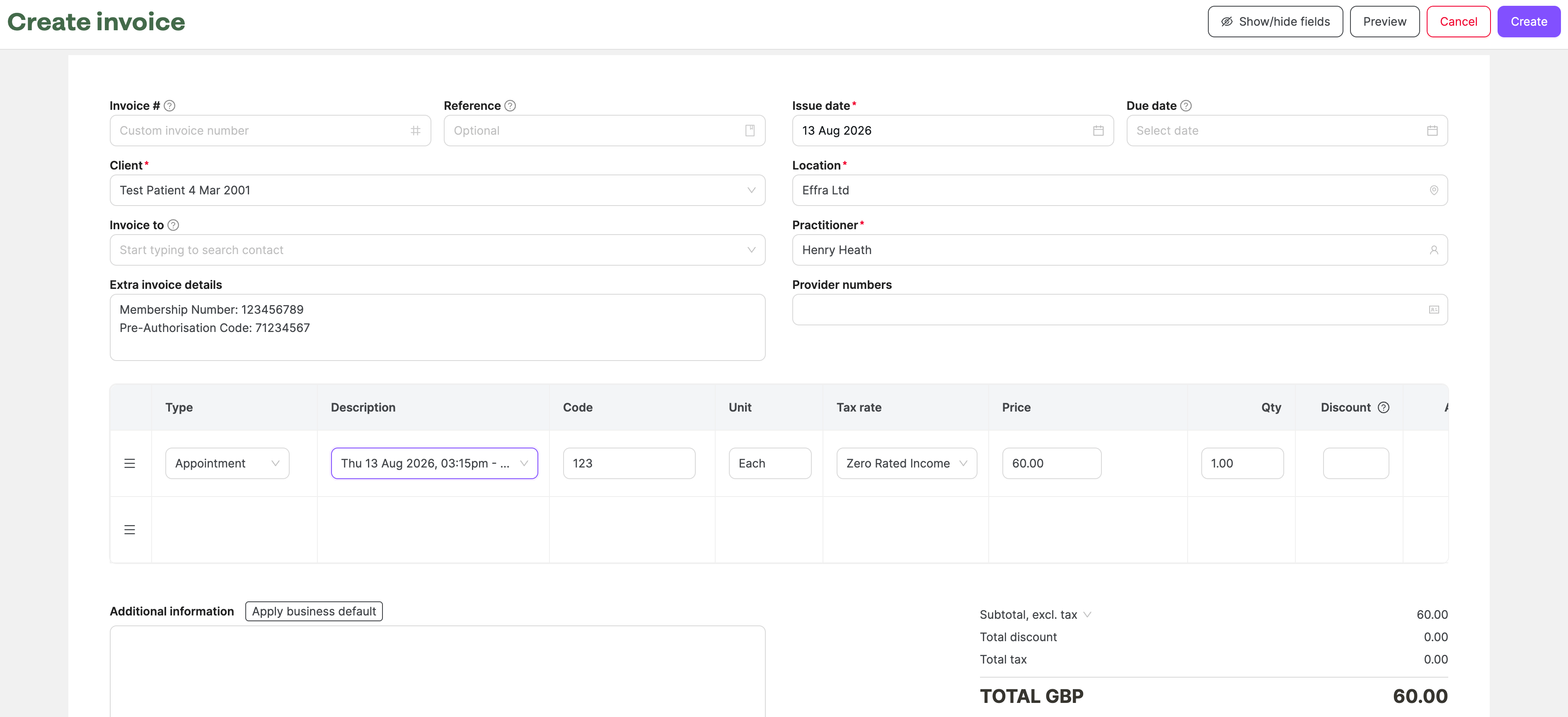 Once you're happy with the details, use the Create button in the top right hand corner to issue the invoice. Effra will then recognise the invoice as an insurer one, pull it through to our system and submit it to the relevant insurer.